
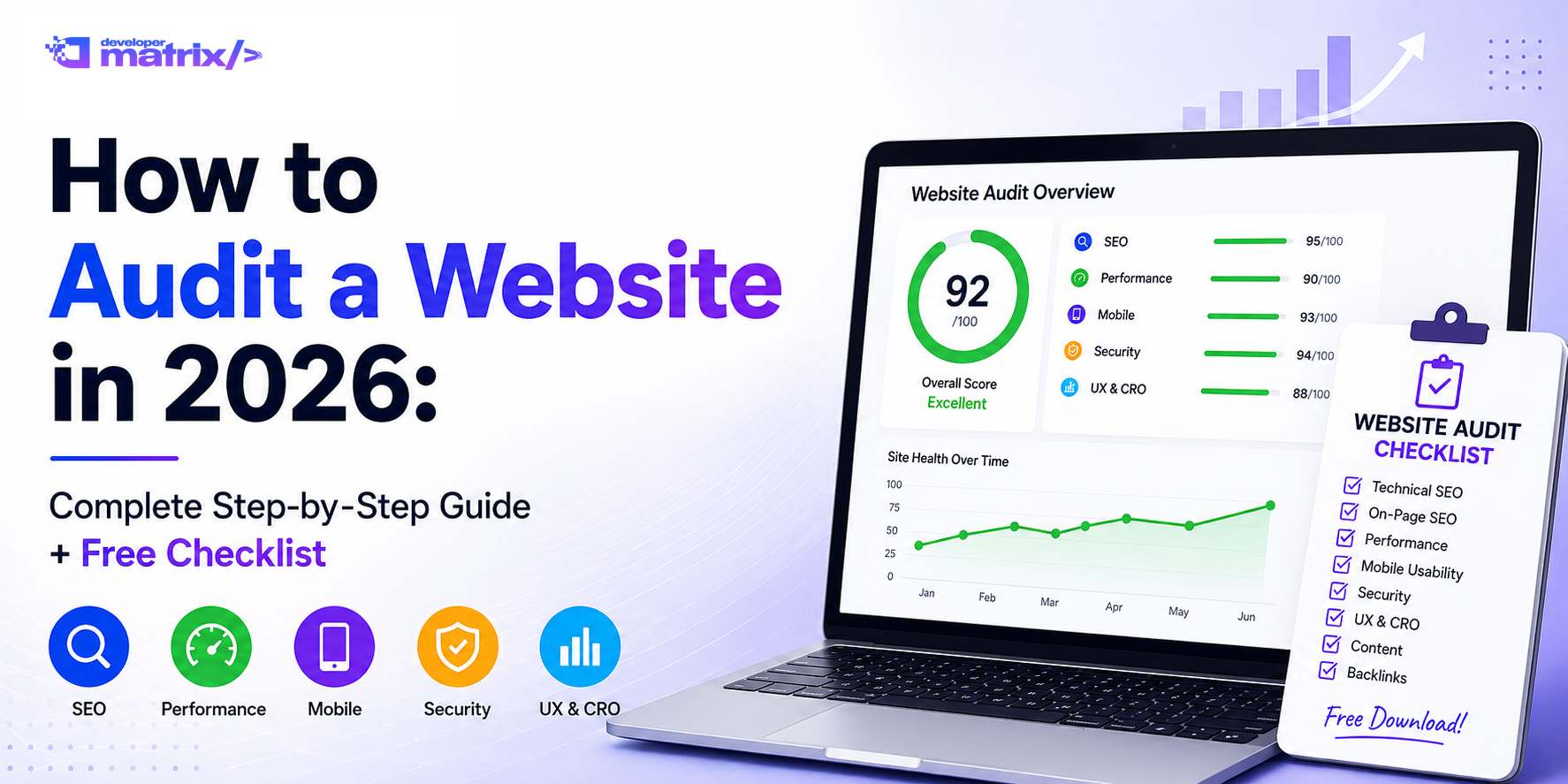
How to Audit a Website in 2026: Complete Step-by-Step Guide + Free Checklist
Learn how to audit any website with this complete 15-step framework. Includes free checklist, tool recommendations, and expert tips to fix SEO issues fast.
Related tools for this topic
Use our free AI tools to apply what you just read — no signup required.
Here's the hard truth: most websites are leaking traffic, conversions, and search rankings and the owners don't even know it. I've run hundreds of website audits over the years, and the pattern is always the same. Technical issues pile up silently. Content goes stale. Broken links multiply. And Google quietly pushes your pages further down the search results.
The good news? A proper website audit catches all of this before it becomes expensive. Even better you don't need to be an SEO expert or hire an agency to do it. In this guide, I'll walk you through a complete website audit step by step. By the end, you'll know exactly what to check, how to check it, and what to fix.
What Is a Website Audit? (And Why It Matters in 2026)
A website audit is a systematic examination of your site's health, performance, and SEO. Think of it like a medical checkup for your website it diagnoses problems before they become critical.
There are three main types:
| Audit Type | What It Checks | Why It Matters | |
|---|---|---|---|
| Technical SEO Audit | Crawlability, indexation, speed, mobile, security | If Google can't crawl your site properly, nothing else matters | |
| On-Page SEO Audit | Titles, meta descriptions, headers, internal links, content | These are the signals that tell Google what each page is about | |
| Content Audit | Quality, depth, freshness, duplicate content, E-E-A-T | Thin or outdated content kills rankings faster than most technical issues |
Why 2026 Is Different
Google's algorithm in 2026 is more demanding than ever. Here's what's changed:
- Core Web Vitals are confirmed ranking factors LCP, INP, and CLS scores directly impact where you rank
- Mobile-first indexing is non-negotiable Google evaluates your mobile site first, desktop second
- AI-powered search Google AI Overviews and voice search favor structured, comprehensive content
- E-E-A-T is critical Google wants to see Experience, Expertise, Authoritativeness, and Trustworthiness, especially for content that affects decisions
A website audit in 2026 isn't just about fixing broken links. It's about proving to both Google and your users that your site is fast, secure, authoritative, and worth visiting.
The Complete Website Audit Checklist: 15 Steps
This is the framework I use for every audit. Work through each step in order technical foundations first, then on-page, then content.
Step 1: Check Crawlability & Indexation
If Google can't crawl or index your pages, they won't appear in search results. Period.
What to check:- robots.txt file Visit
yourdomain.com/robots.txt. Make sure you're not accidentally blocking important pages. Look for lines likeDisallow: /orDisallow: /blog/that might be too broad. - Noindex tags Check that critical pages don't have
<meta name="robots" content="noindex">in the head section. - XML sitemap Verify your sitemap exists at
yourdomain.com/sitemap.xml. Check it only includes indexable pages (no 404s, no redirects, no noindex pages). - Google Search Console Check the Index Coverage report. Look for "Crawled currently not indexed" and "Discovered currently not indexed" errors.
💡 Quick win: Our free website audit tool checks your crawlability and indexation automatically. Run your free audit →
Step 2: Audit Site Architecture & URL Structure
Google and your users need to navigate your site easily. A messy structure confuses both.
What to check:- Flat architecture Every important page should be reachable within 3 clicks from the homepage
- Clean URLs Use descriptive URLs like
/blog/website-audit-guideinstead of/p=12345 - Logical hierarchy Categories and subcategories should make sense. Services → SEO → Technical SEO Audit, for example
- Breadcrumbs Implement breadcrumb navigation for better UX and structured data opportunities
- Orphan pages Pages with zero internal links pointing to them are invisible to Google
Step 3: Test Core Web Vitals (LCP, INP, CLS)
Core Web Vitals are Google's user experience metrics. They measure how fast your pages load and how stable they feel.
What to check:| Metric | Measures | Good | Needs Improvement | Poor | |
|---|---|---|---|---|---|
| LCP (Largest Contentful Paint) | How long until the main content loads | Under 2.5s | 2.5s 4s | Over 4s | |
| INP (Interaction to Next Paint) | How responsive the page feels | Under 200ms | 200ms 500ms | Over 500ms | |
| CLS (Cumulative Layout Shift) | Visual stability (does content jump around?) | Under 0.1 | 0.1 0.25 | Over 0.25 |
- Go to Google PageSpeed Insights
- Enter your URL
- Review the Core Web Vitals section for both mobile and desktop
- Compress images (use WebP format)
- Remove unused JavaScript and CSS
- Set explicit width/height on images to prevent layout shifts
- Use a CDN for faster content delivery
💡 Quick win: Test your Core Web Vitals instantly with our free audit tool. Check your scores →
Step 4: Run a Mobile-Friendly Check
Google uses mobile-first indexing your mobile site is what Google evaluates, not your desktop version.
What to check:- Responsive design Does your site adapt to different screen sizes?
- Tap targets Buttons and links should be at least 48×48 pixels for easy tapping
- Text readability Font size should be readable without zooming
- No horizontal scrolling Content should fit the viewport width
- Content parity Mobile and desktop should have the same content (no hidden mobile content)
- Google Search Console → Mobile Usability report
- Google's Mobile-Friendly Test
- Manual testing on actual devices (iPhone, Android, tablet)
Step 5: Scan for Broken Links & Redirects
Broken links waste "link equity" (the ranking power passed through links) and frustrate users.
What to check:- Internal 404s Links on your site pointing to deleted or moved pages
- External 404s Outbound links to websites that no longer exist
- Redirect chains A → B → C redirects waste crawl budget and slow users down
- 302 vs 301 redirects Use 301 (permanent) redirects, not 302 (temporary) for moved content
- Screaming Frog SEO Spider (free up to 500 URLs)
- Google Search Console → Pages report → Not found (404)
- Broken Link Checker (free online tool)
Step 6: Check for Duplicate Content
Duplicate content confuses Google. When multiple pages have the same or very similar content, Google struggles to decide which one to rank.
What to check:- Canonical tags Each page should have a
<link rel="canonical">tag pointing to the preferred version - URL parameters URLs like
/product?id=123and/product/123should canonicalize to one version - HTTP vs HTTPS All HTTP pages should redirect to HTTPS with 301
- www vs non-www Pick one and redirect the other (we recommend non-www)
- Pagination Paginated pages (page 2, page 3) should use
rel="next"andrel="prev"or self-canonicalize
- Screaming Frog → Canonical tab
- Google Search Console → Pages → "Alternate page with proper canonical tag"
- Siteliner (free up to 250 pages)
Step 7: Optimize Images & Media
Images are the #1 cause of slow websites. An unoptimized hero image can add 3-5 seconds to your load time.
What to check:- File size No image should be over 200KB without good reason. Hero images should be under 500KB
- Format Use WebP for photos (30% smaller than JPEG). Use SVG for logos and icons. Reserve PNG only for transparency
- Alt text Every image needs descriptive, keyword-relevant alt text. Not "image1.jpg" but "website audit checklist spreadsheet showing 15 steps"
- Dimensions Set explicit width and height attributes to prevent layout shifts (CLS)
- Lazy loading Load images below the fold only when the user scrolls to them. But don't lazy load the LCP image (largest above-fold image)
- Responsive images Use
srcsetto serve different sizes for different devices
Step 8: Validate Schema Markup
Schema markup (structured data) helps Google understand your content better. It also makes your search results richer showing star ratings, FAQs, breadcrumbs, and more.
What to check:- Organization schema Who you are, what you do
- Article schema For blog posts (headline, author, publish date, modified date)
- FAQ schema Makes FAQs eligible for rich results in Google
- Breadcrumb schema Shows navigation path in search results
- Product schema For product/service pages (price, availability, reviews)
- Google's Rich Results Test
- Schema Markup Validator
- View page source → search for
"@context": "https://schema.org"
Step 9: Review On-Page SEO Elements
These are the basics that tell Google what each page is about.
What to check on every important page:- Title tag 50-60 characters, unique per page, includes primary keyword near the front
- Meta description 150-160 characters, unique, compelling, includes a call to action
- H1 tag One per page, includes primary keyword, describes the page's main topic
- Heading hierarchy Logical H1 → H2 → H3 structure. Don't skip levels (H1 to H3)
- Keyword placement Primary keyword in first 100 words, in at least one H2, naturally throughout
- Internal links Link to relevant pages using descriptive anchor text (not "click here")
- Image alt text Descriptive and keyword-relevant
Step 10: Analyze Content Quality & Depth
Content is why people visit your site. It's also what Google evaluates for E-E-A-T signals.
What to check:- Search intent match Does your content actually answer what people searched for?
- Depth Comprehensive content outranks thin content. Aim for 1,500+ words on important topics
- Freshness Update old content with new data, examples, and screenshots
- Originality Don't just rehash what everyone else says. Add your own perspective, data, or experience
- E-E-A-T signals Author bios with credentials, citations to authoritative sources, updated dates
- Readability Short paragraphs (2-3 sentences), bullet points, clear headings
Step 11: Audit Internal Linking Structure
Internal links distribute "ranking power" across your site and help users discover related content.
What to check:- Orphan pages Pages with zero internal links pointing to them. Google can't find them.
- Link depth Important pages should be linked from the homepage or main navigation
- Anchor text Use descriptive text like "website audit checklist" instead of "click here"
- Link distribution Are you linking evenly across your site, or clustering links on a few pages?
- Broken internal links Links to deleted or moved pages on your own site
- Screaming Frog → Internal → Orphan Pages
- Ahrefs → Internal Link Opportunities
- Manual review of your site's navigation and footer
Step 12: Check HTTPS & Security
Google prioritizes secure sites. An HTTPS certificate is non-negotiable in 2026.
What to check:- SSL certificate Valid and not expired. No browser security warnings
- Mixed content No HTTP resources (images, scripts, CSS) loading on HTTPS pages
- Security headers Implement HSTS, X-Content-Type-Options, X-Frame-Options
- Content Security Policy Prevents XSS attacks
- No malware Google Search Console → Security Issues report
- SSL Labs Test
- Google Search Console → Security Issues
- Chrome DevTools → Console (look for mixed content warnings)
Step 13: Evaluate Conversion Elements
Traffic means nothing if visitors don't convert. This is especially important for business sites.
What to check:- CTA clarity Every page should have a clear next step (sign up, contact, download, buy)
- Above-the-fold CTAs Your main CTA should be visible without scrolling
- Form friction Minimize form fields. Every extra field reduces conversions
- Trust signals Testimonials, client logos, security badges, money-back guarantees
- Contact information Easy to find phone number, email, address
- Social proof Reviews, case studies, user counts, ratings
Step 14: Review Analytics & Tracking
You can't improve what you don't measure.
What to check:- Google Analytics 4 Properly installed, tracking page views, events, and conversions
- Google Search Console Verified ownership, sitemap submitted, no manual actions
- Event tracking Form submissions, button clicks, downloads, scroll depth
- Goal/conversion tracking Are you measuring what matters?
- Privacy compliance GDPR cookie consent, data retention policies
Step 15: Document & Prioritize Findings
An audit is useless if you don't act on it. Create a prioritized action plan.
Priority matrix:| Priority | Issue Type | Example | Timeline | |
|---|---|---|---|---|
| 🔴 Critical | Blocks indexing or severely impacts UX | Site not indexed, broken checkout, expired SSL | Fix today | |
| 🟡 Warning | Hurts rankings or conversions but doesn't block | Slow pages, missing meta descriptions, thin content | Fix this week | |
| 🟢 Passed | No issues | Working as intended | Monitor monthly |
Website Audit Tools: Free vs. Paid Comparison
You don't need expensive tools to audit your website. Here's what I use and recommend:
| Tool | Free Tier | Best For | Paid Price | Our Rating | |
|---|---|---|---|---|---|
| DevelopersMatrix Audit | ✅ Full audit, unlimited | Quick comprehensive checks | Free | ⭐⭐⭐⭐⭐ | |
| Google Search Console | ✅ 100% free | Indexing, mobile, performance | Free | ⭐⭐⭐⭐⭐ | |
| Google PageSpeed Insights | ✅ 100% free | Core Web Vitals | Free | ⭐⭐⭐⭐⭐ | |
| Screaming Frog | ✅ 500 URLs | Technical crawling | $259/year | ⭐⭐⭐⭐ | |
| Ahrefs Webmaster Tools | ✅ Limited | Backlinks, keywords | From $129/mo | ⭐⭐⭐⭐ | |
| SEMrush Site Audit | ✅ Limited | Comprehensive SEO | From $139.95/mo | ⭐⭐⭐⭐ | |
| GTmetrix | ✅ Basic | Page speed | From $14.95/mo | ⭐⭐⭐ |
🚀 Try our free website audit tool first. It checks all 15 areas from this checklist in under 60 seconds. Run your free audit →
How to Use Our Free Website Audit Tool (60-Second Tutorial)
Let me show you how fast a proper audit can be:
Step 1: Go to Try our free website audit Step 2: Enter your website URL in the search box Step 3: Click "Analyze Website" Step 4: In about 30 seconds, you'll get a complete report covering:- SEO score and specific issues
- Performance metrics (Core Web Vitals)
- Mobile-friendliness check
- Security status
- Content analysis
- Conversion optimization tips
The tool runs 260+ checks across 8 categories essentially automating everything from the 15-step checklist above. No need to manually check robots.txt, crawl for broken links, or test mobile separately.
5 Common Website Audit Mistakes to Avoid
I've seen these mistakes repeatedly even from experienced marketers:
1. Auditing Once and Forgetting About It
Websites change. New content gets published. Plugins get updated. Broken links appear. An audit from 6 months ago is irrelevant today. Schedule audits quarterly at minimum.
2. Focusing Only on Technical Issues
Yes, technical SEO matters. But I've seen sites with perfect technical scores get zero traffic because their content is thin and doesn't match search intent. Audit content quality with the same rigor as crawl errors.
3. Ignoring Mobile Performance
"It looks fine on my laptop" is the most expensive sentence in SEO. Check your site on an actual phone, not just Chrome's device emulator. Mobile users have different needs and patience levels.
4. Not Acting on the Findings
An audit report sitting in a folder is useless. Create a task list, assign owners, set deadlines, and track completion. The best audit is the one that gets implemented.
5. Using Too Many Tools
Analysis paralysis is real. You don't need 10 tools. Pick 2-3 that cover your needs and learn them well. For most sites, that's Google Search Console + PageSpeed Insights + one comprehensive audit tool.
How Often Should You Audit Your Website?
| Frequency | What to Check | Time Required | Best For | |
|---|---|---|---|---|
| Monthly | 404 errors in GSC, Core Web Vitals, top keyword rankings | 30 minutes | Active sites publishing regularly | |
| Quarterly | Full technical audit, content freshness check, backlink review | 2-4 hours | Most business websites | |
| Yearly | Comprehensive audit, competitor analysis, strategy review | 1-2 days | Planning annual SEO strategy |
Frequently Asked Questions
What is a website audit?
A website audit is a comprehensive examination of your site's technical health, SEO performance, content quality, and user experience. It identifies issues that prevent your site from ranking well in search engines or converting visitors effectively.
How long does a website audit take?
An automated audit with our tool takes 30-60 seconds. A manual audit following this checklist takes 2-4 hours for a small site, or 1-2 days for a large site with hundreds of pages.
How much does a website audit cost?
Professional agency audits range from $500 to $5,000+ depending on site size. However, you can run a comprehensive audit for free using our tool, Google Search Console, and PageSpeed Insights.
Can I audit my website for free?
Absolutely. Our free website audit tool checks 260+ SEO, performance, and conversion factors at no cost. Combine it with Google Search Console and PageSpeed Insights for a complete free audit stack.
What's the difference between a technical SEO audit and an on-page SEO audit?
A technical SEO audit checks your site's infrastructure crawlability, speed, mobile performance, security, and indexation. An on-page SEO audit checks individual page elements titles, meta descriptions, headers, content quality, and keyword usage. Both are essential.
What tools do I need for a website audit?
For most sites, three free tools are sufficient: (1) Google Search Console for indexing and performance data, (2) Google PageSpeed Insights for Core Web Vitals, and (3) our free website audit tool for comprehensive checks across all categories.
Will a website audit fix my Google rankings?
An audit identifies problems. Fixing those problems improves your chances of ranking better. But rankings depend on many factors content quality, backlinks, competition, and Google's algorithm. An audit is the first step, not a magic bullet.
What are Core Web Vitals?
Core Web Vitals are Google's three user experience metrics: Largest Contentful Paint (loading speed), Interaction to Next Paint (responsiveness), and Cumulative Layout Shift (visual stability). They're confirmed ranking factors as of 2026.
Can I audit a competitor's website?
Yes. You can run any publicly accessible website through our free audit tool to see their technical SEO health, performance scores, and content structure. This is useful for competitive benchmarking and finding gaps in your own strategy.
How do I prioritize audit findings?
Fix critical issues first anything that blocks indexing, breaks functionality, or creates security risks. Then address warnings that hurt rankings or conversions. Finally, optimize "passed" areas for marginal gains. Use our priority matrix above.
Conclusion
A website audit isn't a one-time task it's a habit. The sites that rank well and convert visitors aren't lucky. They systematically check their technical health, optimize their content, and fix issues before they compound.
You now have a complete 15-step framework to audit any website. Whether you're checking your own site or evaluating a competitor, this checklist gives you a structured approach that catches the issues that actually matter.
Here's what to do next:- 🚀 Run your free website audit now Get instant results across all 15 steps in under 60 seconds
- Fix the critical issues first Use the priority matrix from Step 15
- Schedule your next audit Monthly quick checks, quarterly deep dives
Remember: the best time to audit your website was yesterday. The second best time is right now.
About DevelopersMatrix
DevelopersMatrix is a free AI-powered platform offering 20+ tools for developers, marketers, and website owners. Our Website Audit Tool checks 260+ SEO, performance, and conversion factors no signup required, completely free.
Related Articles: Explore All Free Tools →Sources and References
This guide synthesizes information from authoritative industry sources, official documentation, and peer-reviewed research. The following references were consulted and are recommended for further reading:
Official Documentation
- Google Search Central Site Audit Best Practices Google's official starter guide covering crawling, indexing, and ranking fundamentals. Updated continuously by Google's search quality team.
- Google PageSpeed Insights Documentation Technical documentation for Core Web Vitals measurement methodology, scoring thresholds, and lab vs. field data differences.
- web.dev Core Web Vitals Google's web developer resource explaining LCP, INP, and CLS with real-world optimization strategies and browser implementation details.
- Schema.org Structured Data Reference The canonical vocabulary for structured data markup, maintained by the W3C Schema.org community group.
Industry Research and Standards
- W3C Web Accessibility Initiative (WAI) WCAG 2.1 and 2.2 guidelines for web accessibility compliance, referenced in Section 12 (Accessibility checks).
- HTTP Archive Web Almanac Annual state-of-the-web report based on 15+ million websites. Used for statistical benchmarks on image optimization, CMS distribution, and security header adoption.
- MDN Web Docs HTTP Headers Reference Mozilla's comprehensive documentation on security headers including HSTS, CSP, X-Frame-Options, and X-Content-Type-Options.
Tools and Methodology
- Screaming Frog SEO Spider Documentation Official user guide for the industry-standard technical SEO crawler referenced throughout this guide.
- Google Search Console Help Center Official documentation for index coverage reports, mobile usability testing, and security issue resolution.
- SSL Labs SSL Test Methodology Qualys SSL Labs testing methodology for certificate validation, protocol support, and cipher suite analysis.
Peer-Reviewed and Academic Sources
- Google Research Publications on Information Retrieval Academic papers underlying Google's ranking systems, including foundational work on PageRank and modern neural retrieval models.
Last updated: May 25, 2026. This guide is maintained by the DevelopersMatrix editorial team. Found an error or have a source suggestion? Contact us.
Was this article helpful?
DevelopersMatrix Team
Writer at DevelopersMatrix
Explore more tools
Discover 20+ free AI tools to boost your productivity, career, and content creation.
Browse All ToolsRelated Articles
View all
What Are Autonomous AI Agents? Real Examples by Industry in 2026

Cybersecurity AI Automation in 2026: How AI Is Protecting Businesses Right Now

AI Automation Agency Pricing: What to Charge Clients in 2026
Get curated articles on tech careers, AI tools, and productivity hacks — delivered every Tuesday.
No spam. Unsubscribe anytime. Join 12,000+ developers.